Singer Station v1.4
Backing Tracks Player
Thank you for purchasing Singer Station from iTunes App Store.
The Singer Station is the Player that contains many very nice and useful features, BUT THE 3 MOST IMPORTANT FEATURES ARE:
1- THE STOP AFTER EACH SONG PLAY (AutoPause)
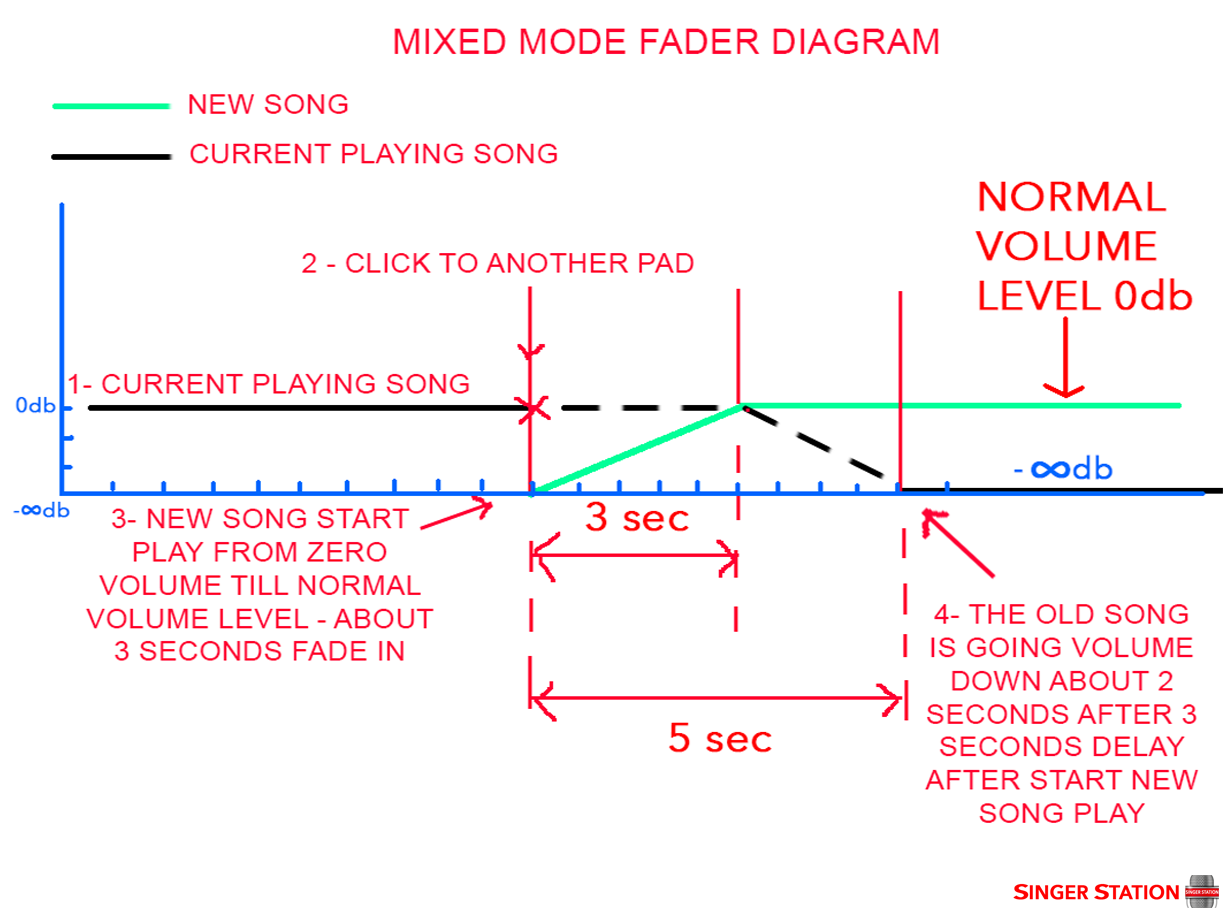
2- THE MIXING START PLAYING SONG (AUTO DJ feature - means creating a mix between 2 songs - the current playing and a new slected song)
3- THE LYRICS VIEW MODE (Manually and Autocatically)
The "Singer Station" v1.4 Main Screen.
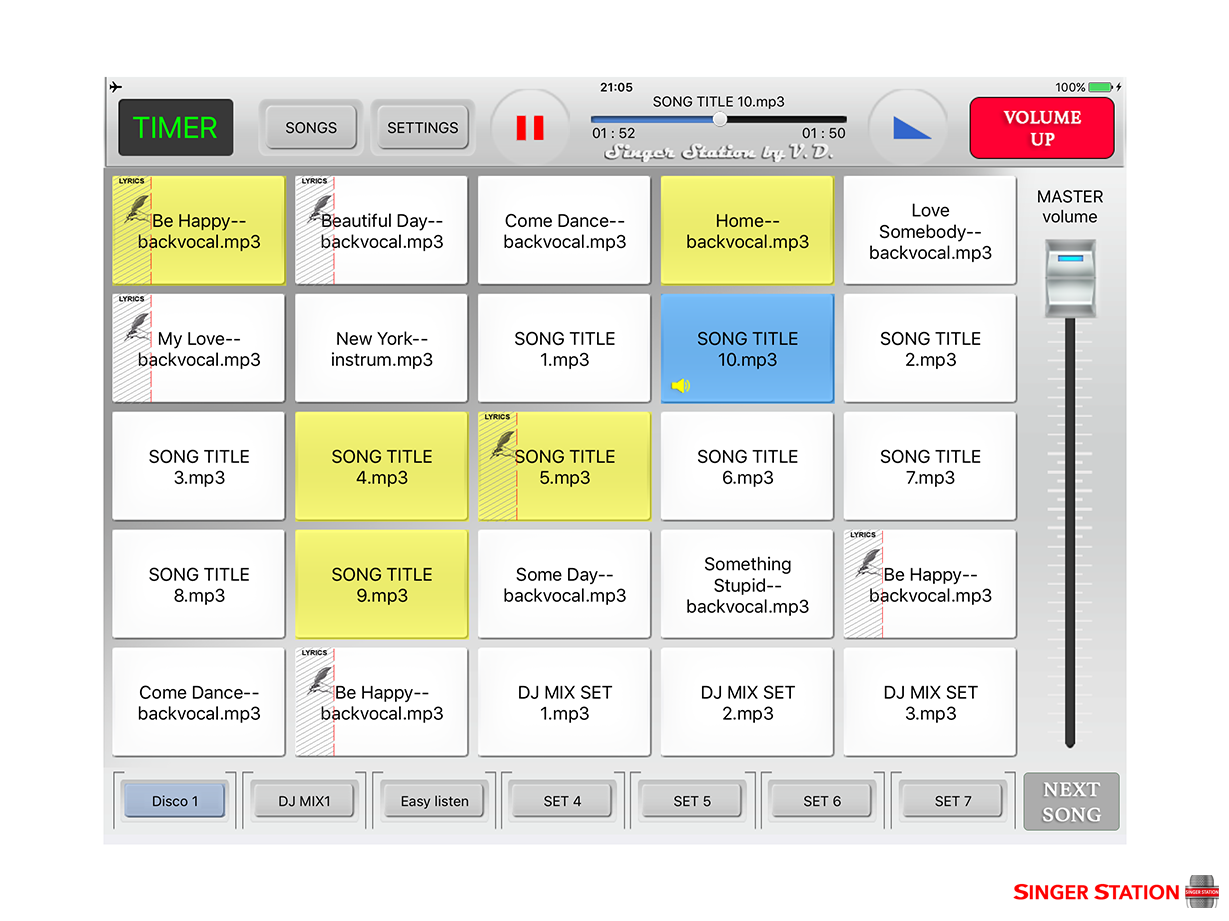
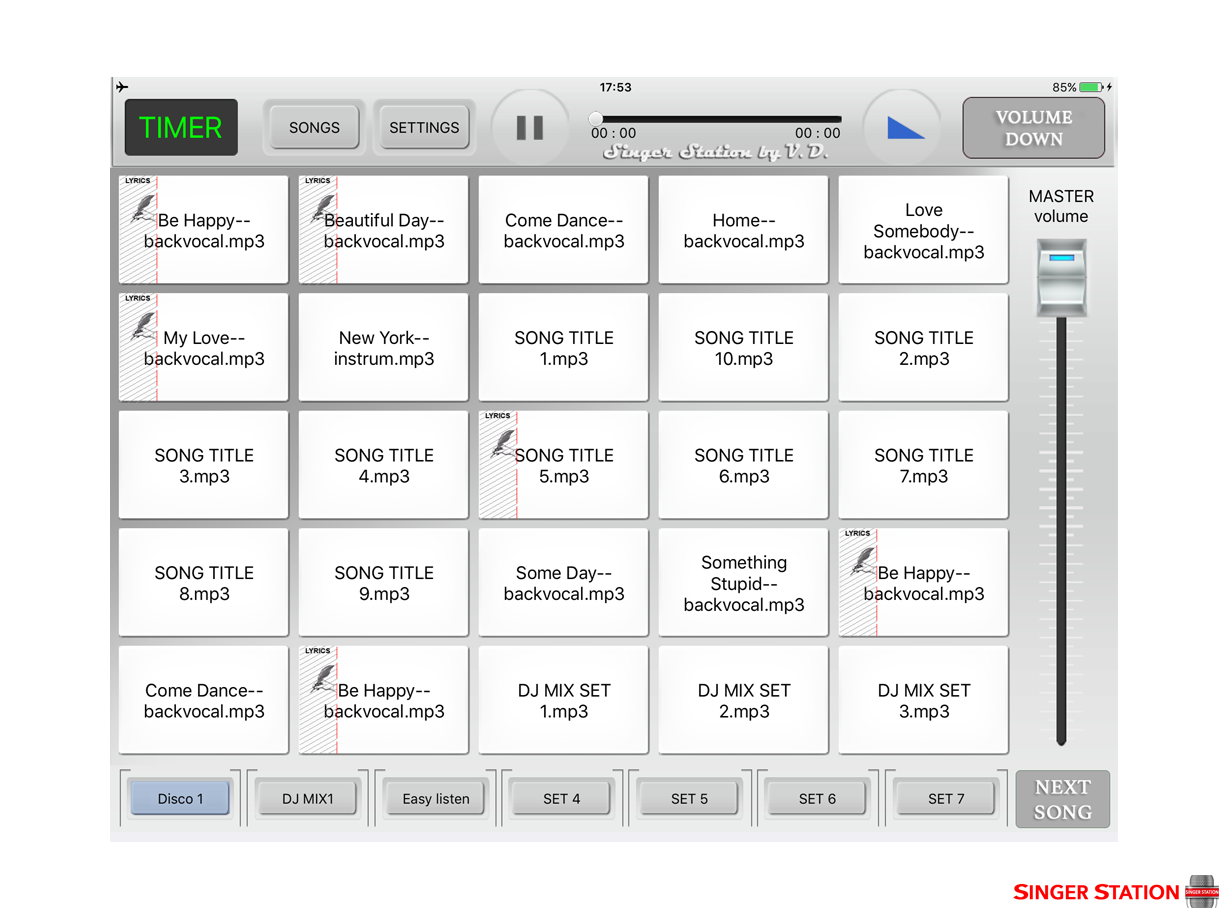
The main screen privew:

1. Main Screen Features List:
- "TIMER" button. Allows to count the duration of performing.
- "SONG" button. Ads songs to pads. The song will be assigned to pads WITHOUT STOPPING THE CURRENT PLAYING SONG and songs can be added from almost all modes.
- "SETTINGS" button. Opens the Settings Menu.
- "PAUSE" button. Pauses the playing song.
- Current Playing Song Title.
- Current Playing Song Time Position Slider.
- "FADE OUT" button. Stops playing song by FADE OUT EFFECT.
- "VOLUME DOWN" "VOLUME UP" button. Gets volume down or up to value from the settings menu slider.
- "MASTER VOLUME" value slider.
- "BLUE PAD"- NOW PLAYING SONG.
- "SPEAKER" icon - Indicates this pad is PLAYING NOW.
- "NEXT SONG" mode button. Ads quick create playlist up to 25 songs that will be played without stopping.
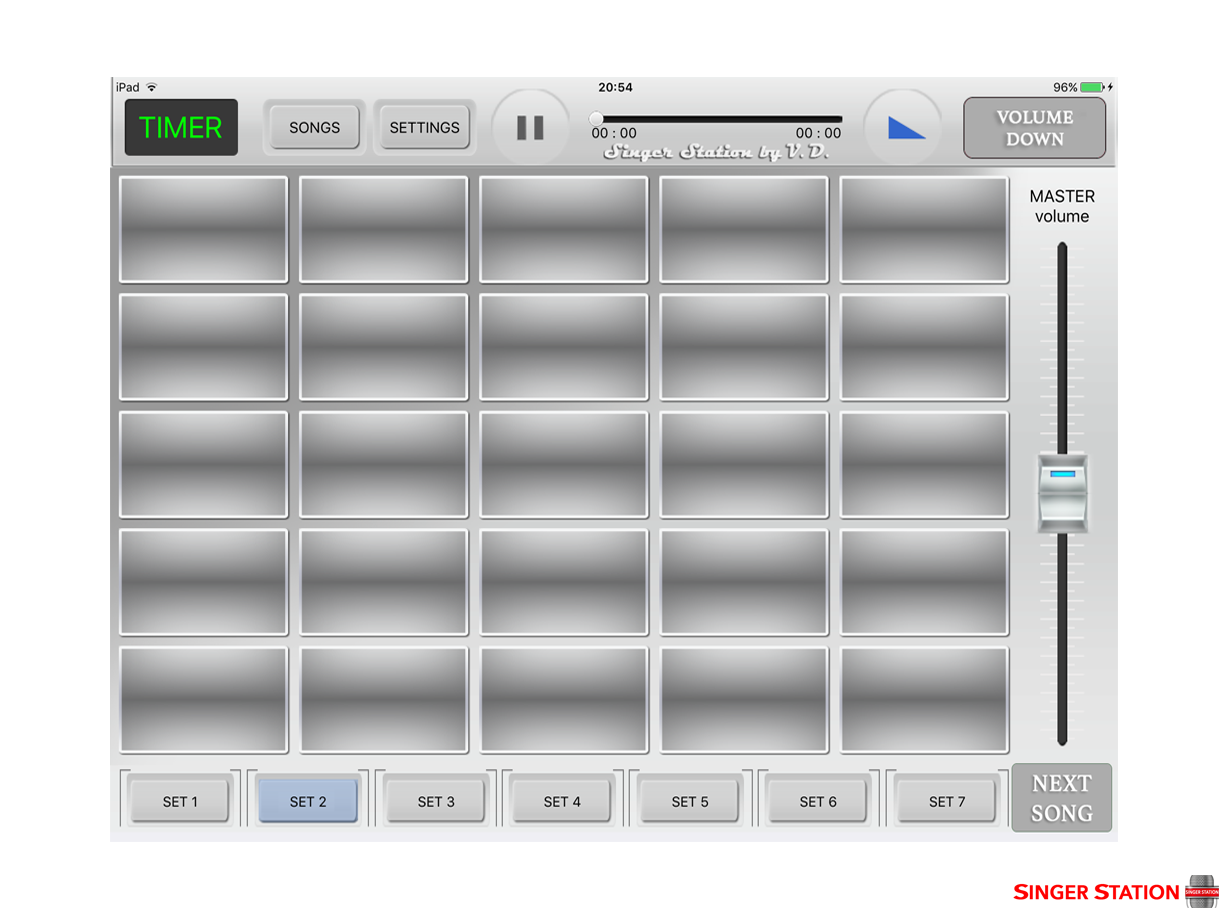
- "SETS" buttons. Each Set can contain up to 25 songs.
- "ACTIVE SET" button - blue colored.
- "WHITE PAD"- white color means that the song from this pad WAS NOT PLAYED.
- "YELLOW PAD"- yellow color means that the song from this pad WAS PLAYED.
- "DARK GRAY"- dark gray means the pad is empty - NO SONG ASSIGNED.
- "LYRICS VIEW ICON AREA"- means that this pad contains lyrics. One press - opens a window with the lyrics.
Adding Songs to Pads (assigning songs to pads process).
ADD SONG: STEP 1

ADD SONG: STEP 2
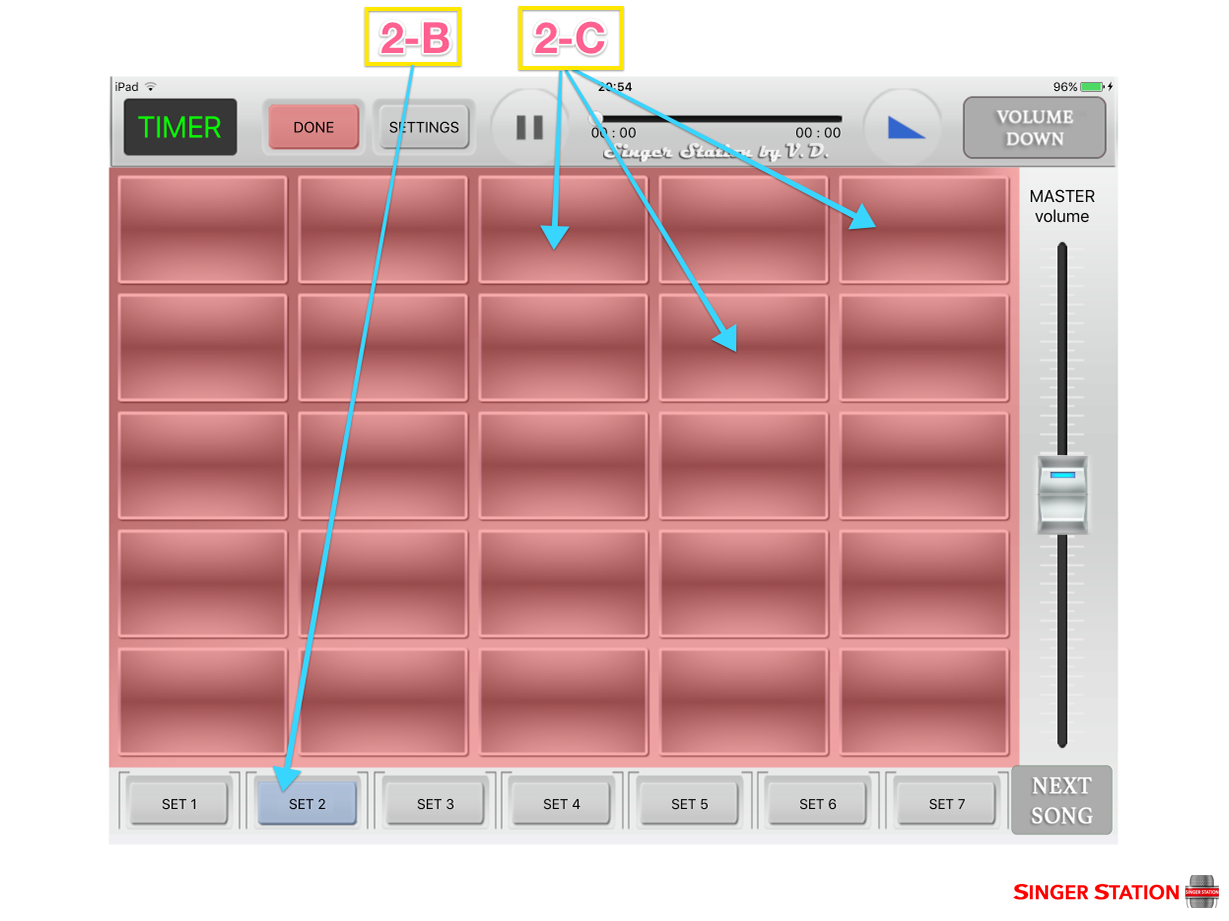
ADD SONG: STEP 3
-
2-D - Select Music Library - iTunes or Singer Station songs library.
-
2-E - Select source from Playilist, Songs, or other categories.
ADD SONG: STEP 4

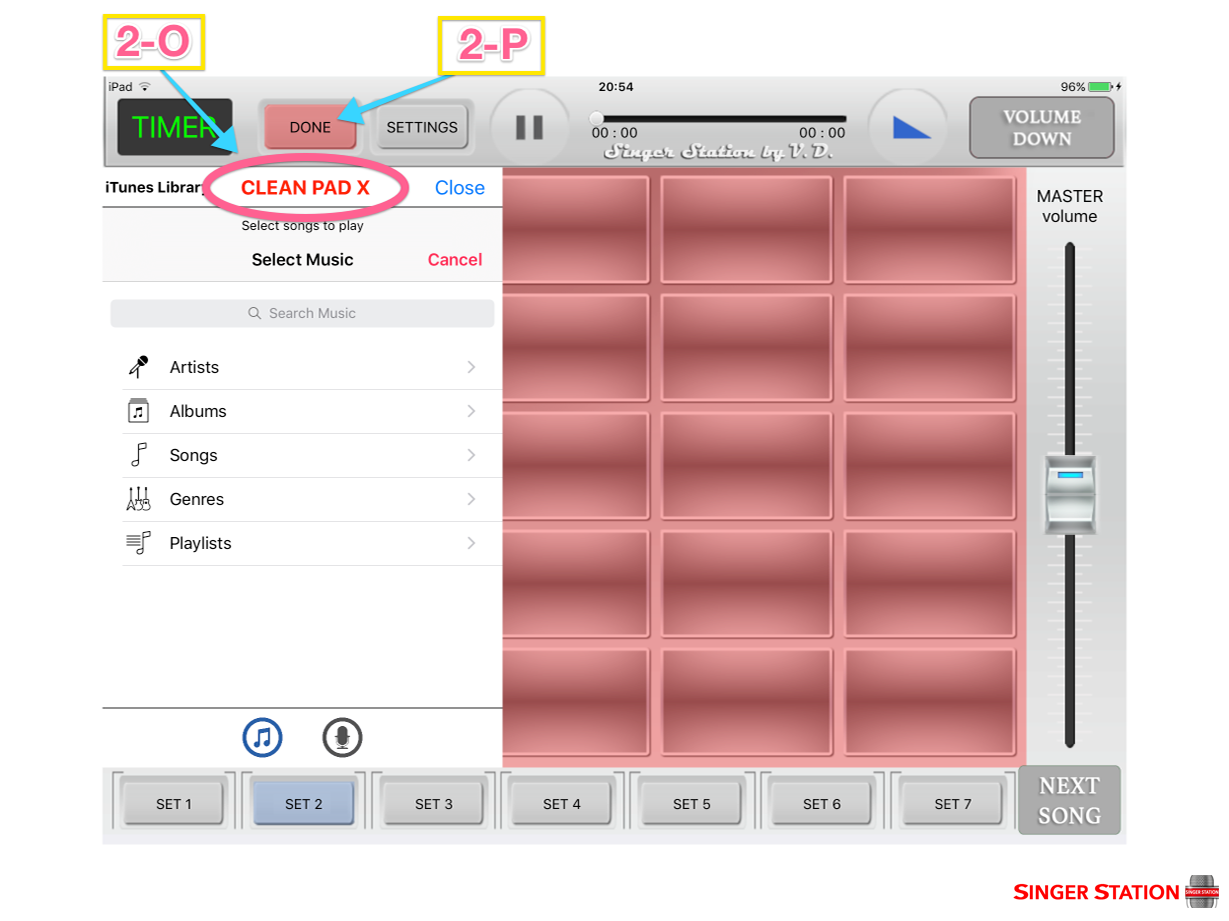
Cleaning Some Pad from Song. Empty Pad.
CLEAN PAD: STEP 1
CLEAN PAD: STEP 2
CLEAN PAD: STEP 3
The current time position slider is used to "slide" to some time position in song.
5-A The TITLE of the current playing SONG.
5-B The Time Slider
5-C Remaining time value.
5-D Elapsed time value.

"FADE OUT" button. When presssed, the current playing song will stop playing by slowly fading the volume away. The time value of fade-out process is stored in the SETTINGS MENU, and can be managed by the Fade Duration Slider - 3-R
The "FADE OUT" button can be used as an ALTERNATIVE "STOP PLAY" of the current playing song.
MASTER VOLUME SLIDER ALLOWS EASY AND QUICK CHANGES TO THE MAIN VOLUME OF THE CURRENT PLAYING SONG.

JUST PUT FINGER ON IT (THE FINGER MUST BE PUT JUST BELOW THE BLUE LED ON SLIDER) AND SLIDE IT UP OR DOWN TO SET THE MAIN IPAD VOLUME TO THE WANTED VALUE.

THE NEXT SONG PLAY MODE TO SELECTS SONGS (UP TO 25) THAT WILL BE PLAYED WITHOUT STOPS - ONE BY ONE.
THIS PLAYING MODE CAN BE USED FOR CREATING a "QUICK PLAYLIST". BY PRESSING THE "NEXT SONG" BUTTON, THE COLOR OF ALL PADS TURN TO GREEN "12-A".
THIS MEANS THAT THE SINGER STATION IS IN THE NEXT SONG PLAY MODE.
PRESSING ON ANY PAD WITH A SONG, WILL COLOR THAT PAD TO RED, AND THE PLAYING ORDER NUMBER WILL BE ON TOP OF SELECTED SONG PAD "12-B".
IF A SONG IS PLAYING NOW - THE FIRST SELECTED SONG PAD FROM NEXT SONG MODE WILL START PLAYING AUTOMATICALLY AFTER THE CURRENT PLAYING SONG ENDS.
TO START IMMEDIATELY THE SELECTED SONG WITH NUMBER 1 - JUST PRESS THE RED "PLAY" BUTTON "12-C"

ALSO IN THE NEXT SONG MODE, THE USER CAN PRESS ON "LYRICS VIEW ICON "12-E" AND THE LYRICS WILL BE DISPLAYED IN AN OPENED WINDOW "12-G".
THE USER CAN ADJUST THE PAD'S SONG VOLUME BY SLIDING UP OR DOWN THE PAD'S SLIDER "12-F".
IF THE USER WANTS TO START PLAYING THE NEXT SONG FROM A SELECTED PLAYILIST- JUST PRESS THE "FADEOUT" BUTTON "12-H", AND THE CURRENT PLAYING SONG WILL TURN THE VOLUME DOWN AND THE NEXT SONG WILL START TO PLAY .
ALSO THE NEXT SONG PLAYLIST CAN BE EASELY CANCELLED BY PRESSING AGAIN THE "NEXT SONG BUTTON"- "12-J"

Hints on how to use the NEXT SONG play mode.
-
12-A - Press the NEXT SONG button. The Pads will be colored to GREEN. This means that Singer Station is in NEXT SONG PLAY MODE- WHICH MEANS THAT EVERY TAP ON PADS WILL ADD THE TAPED SONGS TO THE PLAYLIST, AND THE ORDER OF THE SONGS IN THIS PLAYLIST WILL BE DISPLAYED ON THE PAD.
-
12-B - Select wanted songs to be played by taping on them. Up to 25 songs from any set page can be selected. For each selected songs an order number: 1, 2, 3, 4 etc. will be given. Note that the second tap on a selected song pad will delete it from the playlist order, and next song from the list will take its position.

-
12-C - Press the "PLAY" button to start playing imediatelly song Nr.1 from the selected list OR wait untill the current playing song will finish playinf, and song Nr.1 from the selected playlist order will start to play.
-
12-D - The yellow speaker icon will be on the current playing song pad.
*Note that from version 1.4 the current playing song pad have A BLUE COLOR, and A YELLOW SPEAKER icon on it. 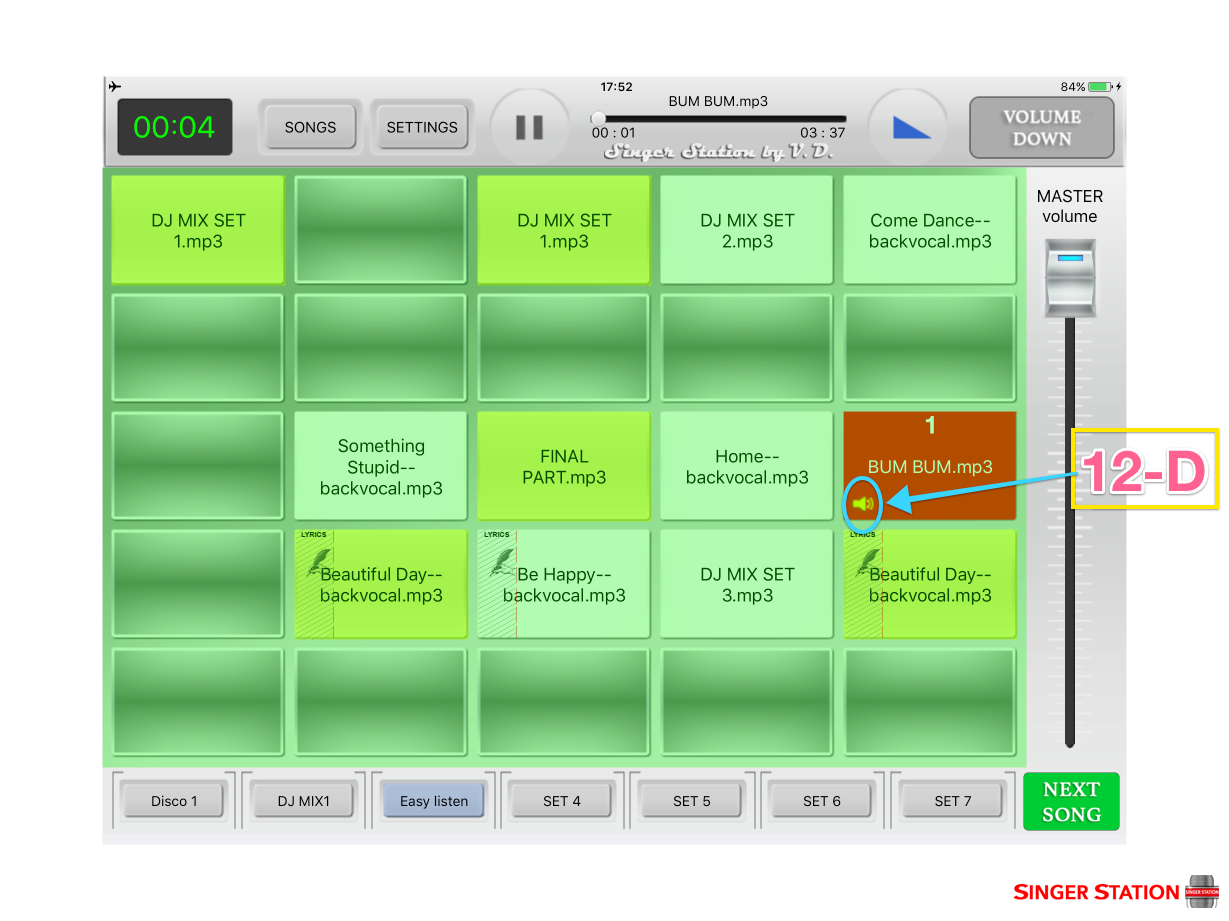
-
12-E - In SETTINGS MENU the switch "View Lyrics" **Picture"3-N" will switched "ON" - the view lyrics icon will be displayed on songs pads that contain lyrics. (Lyrics MUST be added BEFORE UPLOADING SONGS TO iPAD FROM ITUNES). On pressing the LYRICS ICON AREA - the lyrics will be displayed in a lyrics window. **Picture"12-G" *Note that if the switch "Auto Lyrics" **Picture"3-J" from the SETTINGS MENU is switched "ON"- the lyrics window will be opened AUTOMATICALLY from the current playing song, if lyrics are available.
-
12-F - The PAD's volume can be adjusted from next song play mode too.
-
12-G - Lyrics window (Black or White, Big or Extra big).
-
12-H - The FADE OUT - when pressed - the current playing song volume will go slowly down level till full stop and if in the selected playlist are other songs, they will be started by FADE IN. The time value of FADE OUT and FADE IN can be changed from the SETTINGS MENU - **Picture "3-R".
-
12-J - If pressed while GREEN - NEXT SONG MODE will be deactivated, and the PLAYLIST will be CANCELLED.
LYRICS VIEW FEATURES
- 18-B - The Lyrics View icons + Active Area. By touching the area below the Lyrics icon the lyrics window "18-E" will be opened.
* Note: The Lyrics Icon and Active area on button will be visible ONLY IF THE SONG FROM PAD CONTAINS LYRICS. The lyrics must be added to song from iTUNES.
** THE MAIN IMPORTANT FEATURE IS THAT USER CAN OPEN MANUALLY ANY LYRICS FROM ANY SONG, NOT JUST THE LYRICS FROM THE CURRENT PLAYING SONG. PRESS ON LYRICS ICON AREA AND LYRICS FROM THAT SONG PAD WILL BE DISPLAYED.
- 18-C - Color scheme lyrics window change button. Back text on white background, OR white text on black background.
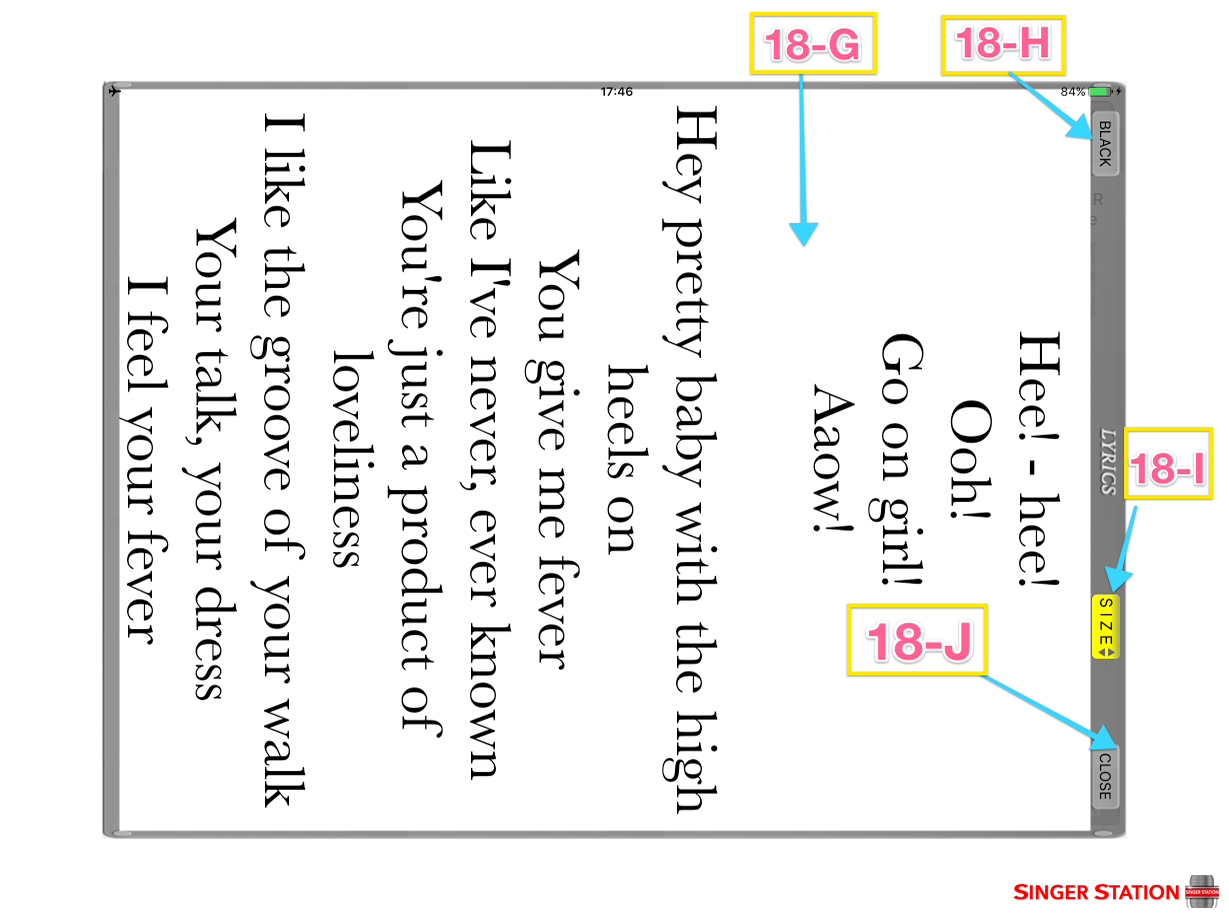
- 18-D - The FULL SCREEN lyrics view button, displays lyrics in full-sized VERTICAL window - see picture "18-G"
- 18-F - The CLOSE lyrics window button.

- 18-G - Full screen black or white lyrics window, "18-H" - color scheme switch.
- 18-I - Extra large font lyrics button - allows to display lyrics with extra-size font.
- 18-J - CLOSE lyrics window button.